
By now you would have been notified by M1IT Systems that your 3CX Phone System has been upgraded to the latest version (v18).
With the new version there are a few major changes to how the client interacts with the 'Web Client' and '3CX Windows App'.
Here are a few changes and what is required by you to change to the new v18 3CX Phone system.
Web Client
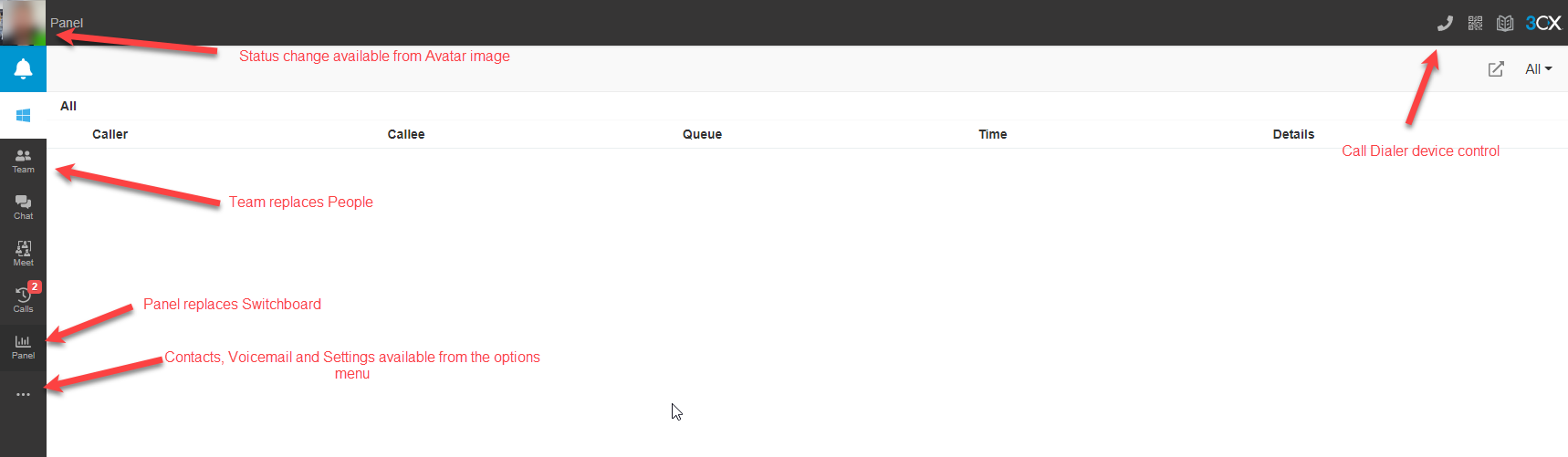
Team - Team displays all active extensions within the company (replaces People)
Chat - Where you can chat to individual or groups within the Company
Meet - Meet combines the function for Scheduling Conferences or organising Webmeetings.
Calls - Calls is where you can see your call history. (Replaces Call History)
Panel - Panel is the new Switchboard. (Replaces Switchboard)
Option Drop-down - Here you can find Contacts, Voicemail and Setting.
Status - You can change the status via the Avatar image in the top left corner.
Call Dialer - This is still located in the top right corner and integrates the desired outbound hardware control e.g. Web Client, Mobile Device or Desk Phone.
With the change to v18 we also have moved away from using the integrated Chrome Plugin. The upgraded 3CX Windows App will now replace this function.
To start using the latest 3CX Windows App please follow these steps:
Install the new 'Windows 3CX App'. Within the 3CX Web Client click the 'App' link in the bottom left corner then select 'Windows Desktop App'. click 'Install'
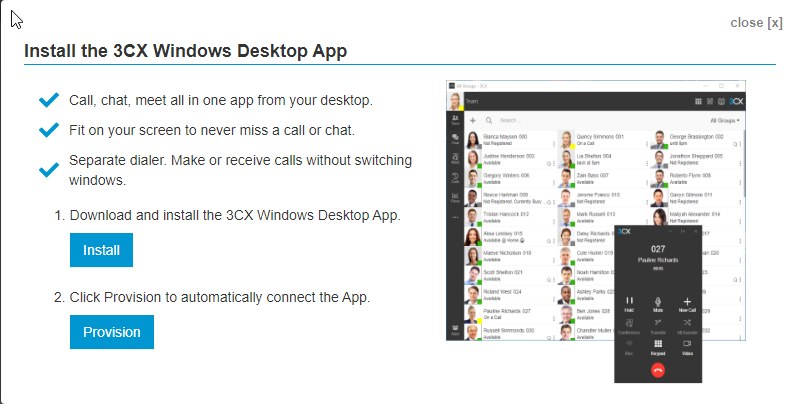
After you have finished installing the app click the 'Provision' button to install your extension to the App.
You will notice that the App looks and functions the same as the Web Client. This means that you don't need to be logged into the Web Client and the Windows App at the same time.
If you have any issues or questions in regards to this process or any of the features of 3CX, please contact M1IT Systems at support@m1it.com.au
Comments
0 comments
Please sign in to leave a comment.