
Within 3CX you can set custom audio prompts for each of the Extension Status States before the call is forwarded to your Voicemail.
Steps:
1. Log into the Web Client via:
https://<clientname>.3CX.com.au/webclient/
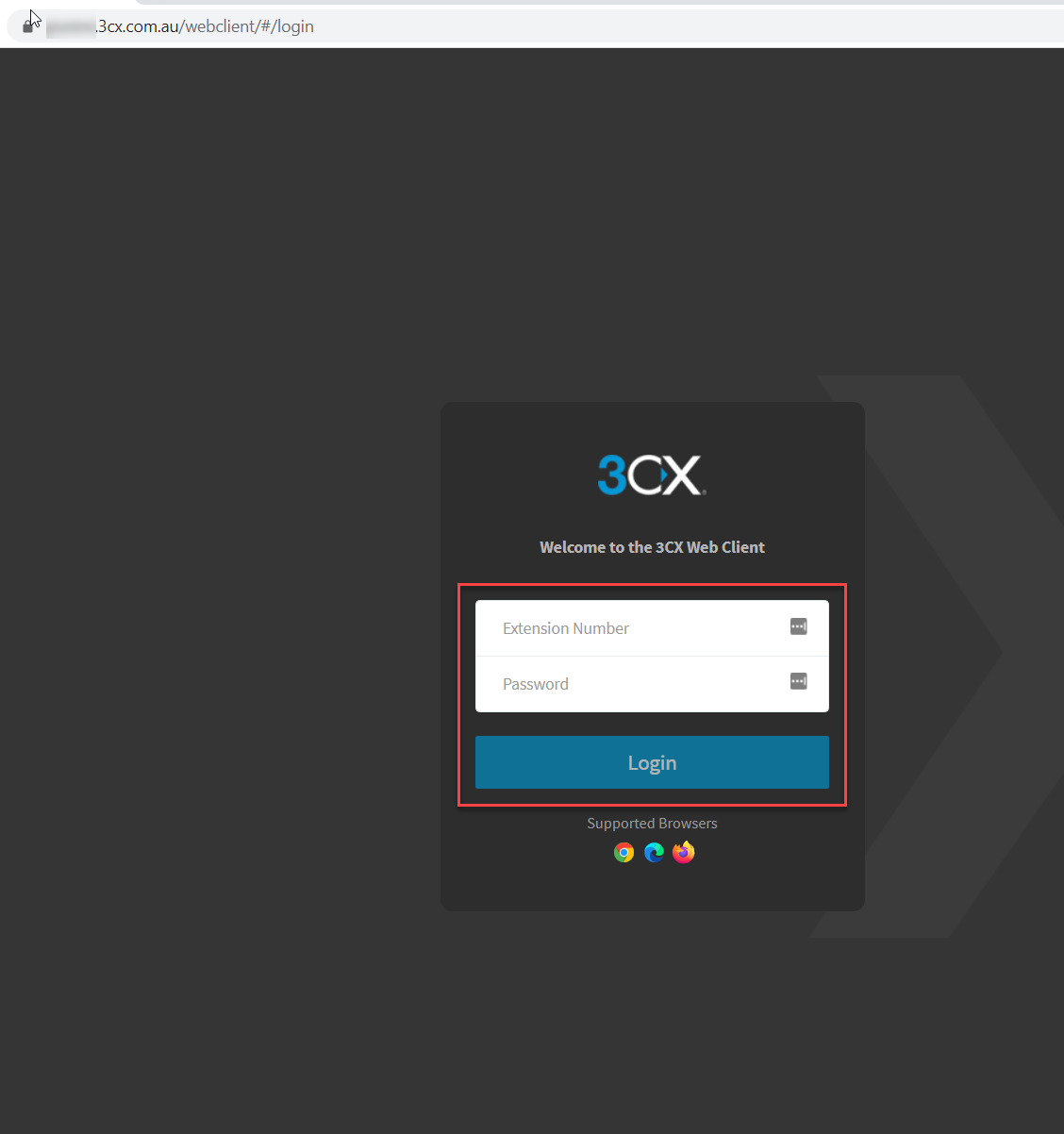
2. From the menu on the left, select 'Settings'.
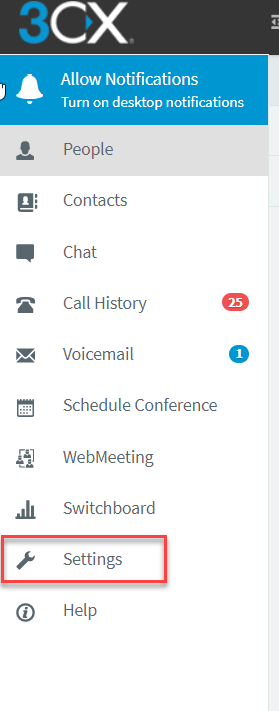
3. From within the 'Settings' options, select 'Greetings'
From here you can see all the types of Status states that you can select for your Extension.
To record your message select 'Record Greeting'.
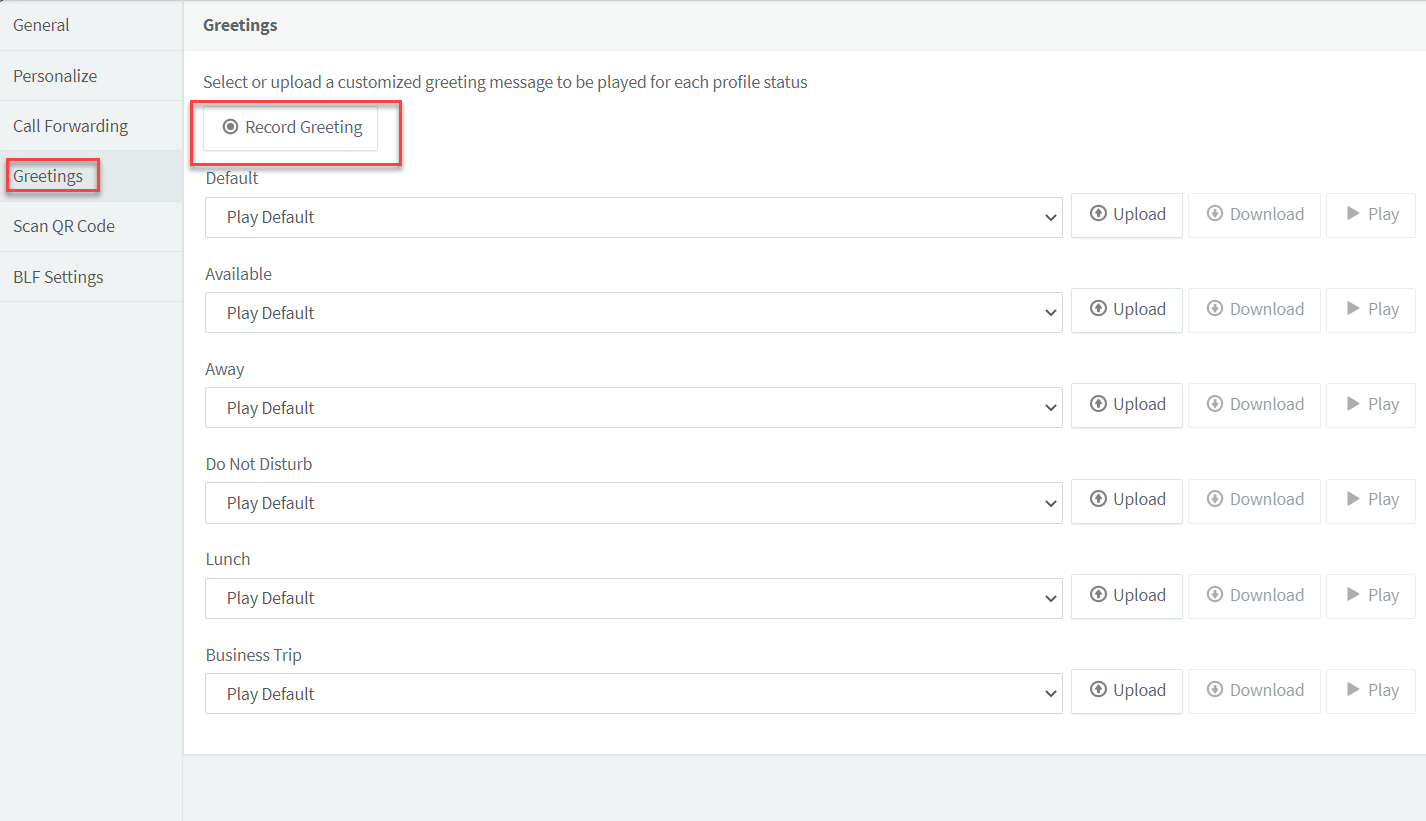
4. You will be prompted to name your recording then click 'OK'. You extension will now ring and prompt you to record your message after the tone.
5. Once you have finished follow the prompt to press '#' then '0' to save your audio message.
6. From here you should now see the newly created Audio recording from the dropdown options for each of the Extension Status States.
NOTE - you may need to refresh the page for the new audio file to show in drop-down.
7. You can now record different audio messages for each of the Extension Status States or leave them as the default.
These only refer to voicemail if you select 'Voicemail' from the 'Call forwarding' rules.
If you have any questions or issues with this process, please contact M1IT Systems at support@m1it.com.au
Comments
0 comments
Please sign in to leave a comment.