
3CX has a built in protection from fraudlient access to the Web Client and Management Console.
If a user attepts to login 3 times with incorrect details then the IP address that they are accessing from will be blacklisted.
For genuine users to avoid this you have the ability to 'Whitelist' their IP.
This can only be perfomed from the Management Console.
Steps:
1. Log into the Management Console with an account that has been granted Management Rights
The URL for the Management Console is https://<client_name>.3cx.com.au/
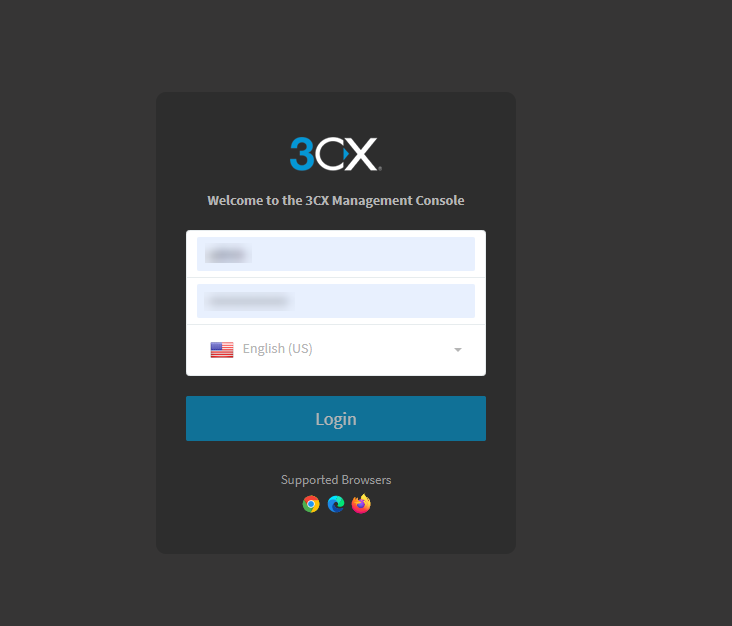
2. After you have logged in, click the 'Securities' tab on the left side then the 'IP Blacklist from the expanded menu list.
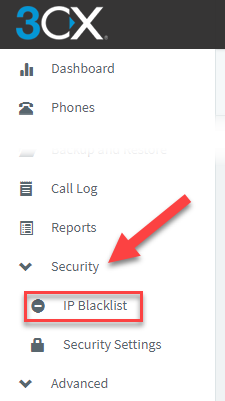
3. From the 'IP Blacklist' page you have the option to 'Add', 'Edit' or 'Delete' items from the list.
To find the IP address of the user, go to 'www.whatismyip.com' and take note of the IPv4 address listed there.
Add:
1. Enter the IP Address into the 'Network Address' field
2. Select 'Allow' from the Action drop-down menue
3. Enter a desctiption into the 'Description' field
4. Set an expiration date for this IP address.
5. Click 'OK'
Edit:
If you have been denied access because of too many incorrect tries or you need to change details of an existing connection select Edit.
1. Select the 'IP Address' from the list.
2. You can change the IP address, Action item, description or Expiration Date for the existing entry.
3. Click 'OK'
delete:
1. select the entry in the list by checking the tick box to the left of the data line. You can select multiple entries.
2. Click the 'Delete' button.
3. you will be prompted to confirm. Click 'OK'.
If you have any questions or trouble with this process, please contact M1IT Systems at support@m1it.com.au
Comments
0 comments
Please sign in to leave a comment.