
Steps to install and setup 3CX app on a mobile device
In order to set up your 3CX account on your mobile device you will need to download the 3CX app, and then configure your account within the app. In order to do this, you will need your 3CX login portal details which can be found in your 3CX welcome email.
Please Note that if you need it resent please contact support@m1it.com.au
1. To download the 3CX app, either access the introduction email via your mobile device and click the link for your device. iOS or Android. Or, head to the app store for your device and download "3CX"

2. Once downloaded run the 3CX app on your mobile device. You will be asked to add an account via scanning a QR code. You will find your QR code within the Web Client. Login via the URL in your Introduction email. The login and password are listed in you Introduction Email.
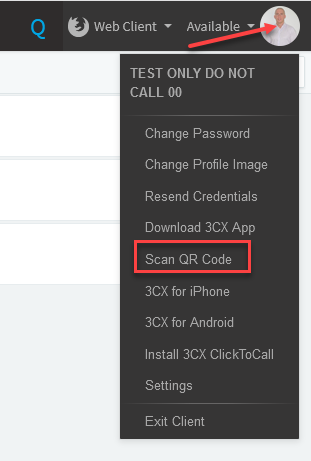
3. You will find you QR code by clicking the Avatar icon in the top right corner then from the drop down list select 'Scan QR Code'. You will be presented with you QR code. Use your mobile device to scan the QR code.
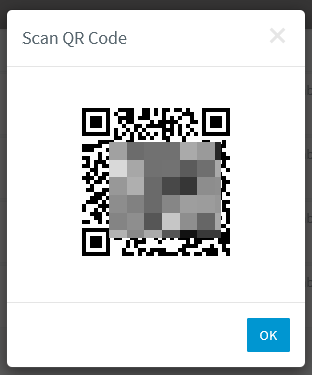
4. once scanned, you 3CX app will auto provision with you assigned extension.
If you have any questions or trouble with the above process, please notify us at support@m1it.com.au
Comments
0 comments
Please sign in to leave a comment.