
3CX provides a fully integrated Web Meeting solution from within the 3CX Web Client. Please see below for instructions on accessing the 3CX Web Meeting interface.
1. Log into the Web Client via:
https://<CompanyName>.3cx.com.au/webclient using the user credentials supplied to you by M1 IT Systems.
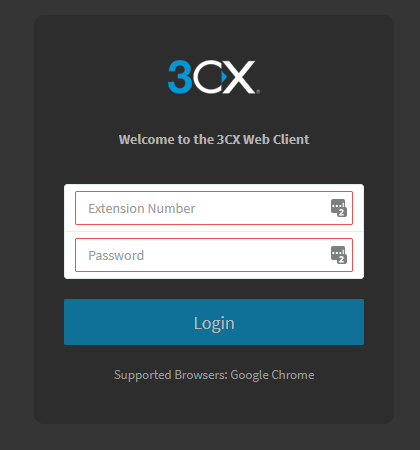
2. Once the Web Client has loaded, click the 'WebMeeting' option within the left menu field.
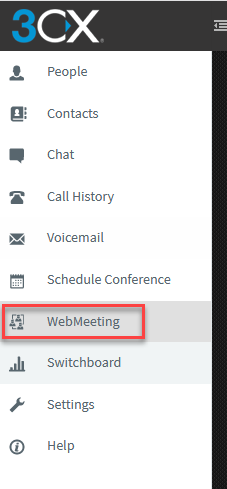
3. Next, click 'Login' to start the 'WebMeeting' session.
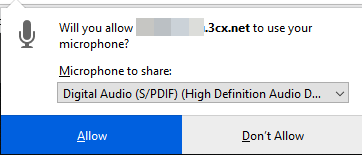
4. When the WebMeeting session starts, you may need to authorise permissions for access to your microphone and webcam. Click 'Allow' if these items are needed during your WebMeeting session.
5. Once fully loaded, you will see the many different areas within the WebMeeting work area.
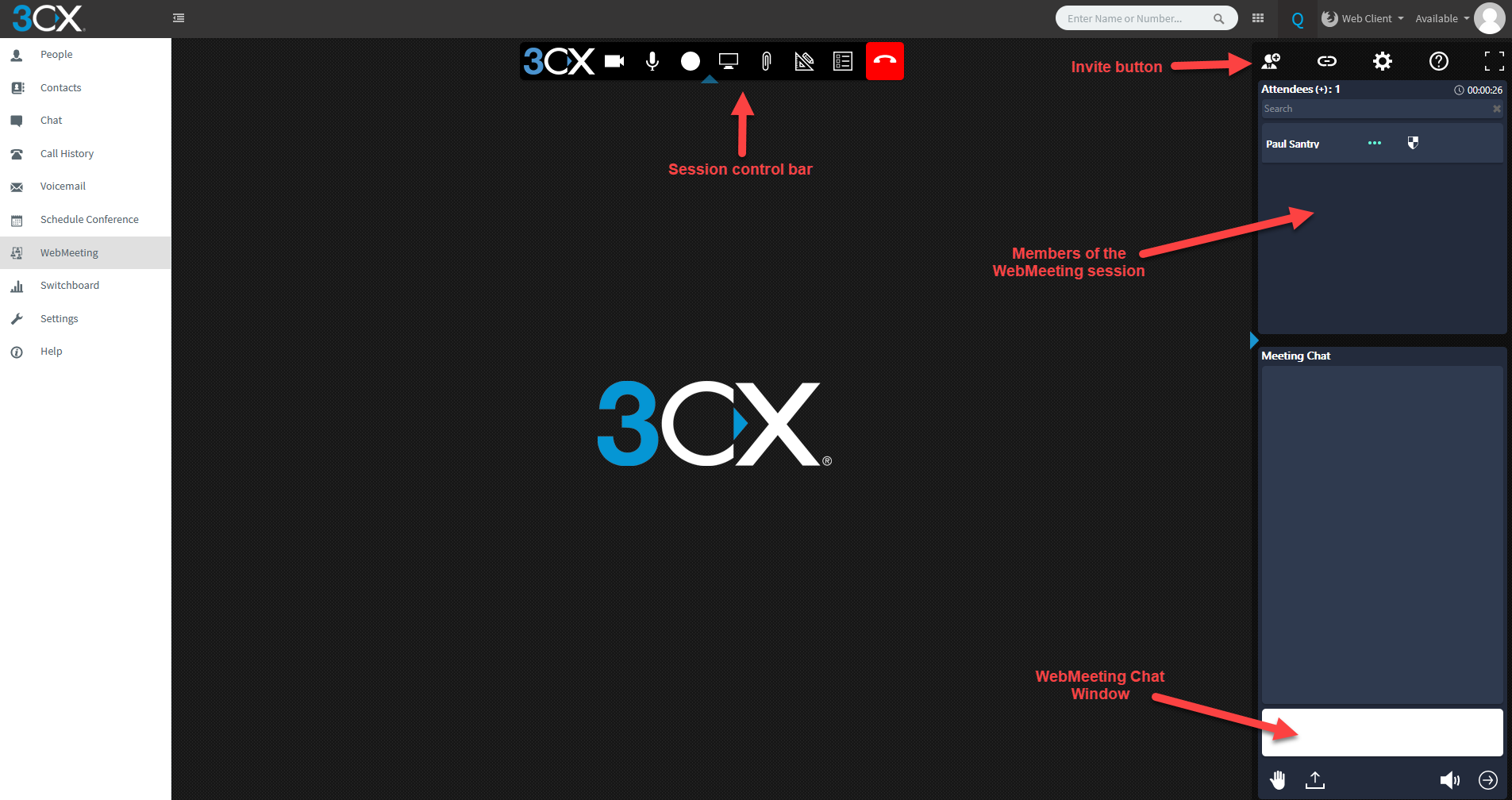
Here is a brief outline of the different areas of the work area.
Session Control Bar Camera control - Turn on or off web camera
 Microphone control - Turn on or off microphone
 Record session - This allows you to record the session and then have it sent to the WebMeeting organisers email address. Before you start recording you are presented with the video quality of the recording. NOTE - The recording is deleted 7 days after the end of the session.
 Screen Sharing - This gives the ability for you to share your desktop with people who are attending the session. You can share your whole desktop or select a certain program that you have open.
 Share PDF - gives you the ability to share a PDF document with people in the session.
 Whiteboard - Displays a basic whiteboard for you to draw or write on to share with people in the session.
 Start a new poll - allows you to run a poll with the people in the session.
 End Meeting - This will end the meeting if you are the organiser or disconnect from the meeting if you are a member.
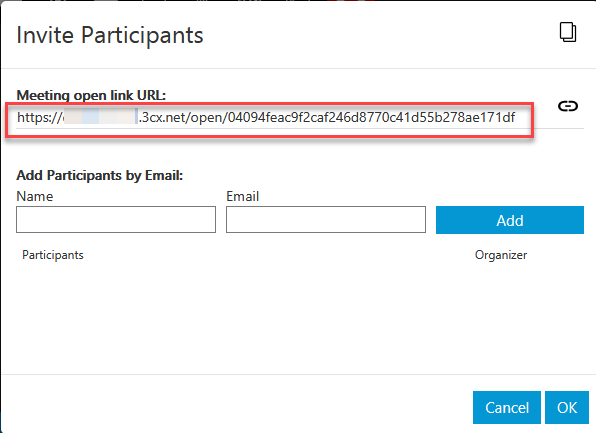
Invite Button
This gives you the ability to invite people to the session by sending the 'join' link via email. Alternately it also gives you the link that allows people to join directly.
Members of the WebMeeting Session
This will show all members who have joined to the WebMeeting via the email or direct link.
WebMeeting Chat Window
This is a basic chat window where members can type and message to be displayed above the input window.
If you have any questions or wish to have a demo of the WebMeeting feature, please contact M1 IT Systems via support@m1it.com.au.
Comments
0 comments
Please sign in to leave a comment.