
to enable audio from the server to play on your local PC.
1. locate the Server RDP file that you use to access the server connection on you local PC.
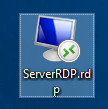
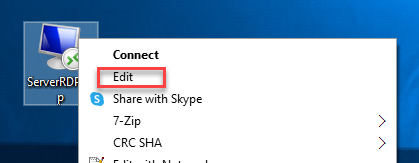
2. Right click on this file and select 'Edit'.
3. Once loaded, Ensure the that the whole window is displayed by clicking the 'Show Options'
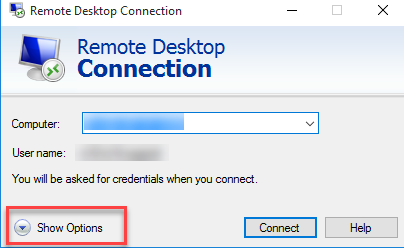
If you do not see this then you are already showing all options.
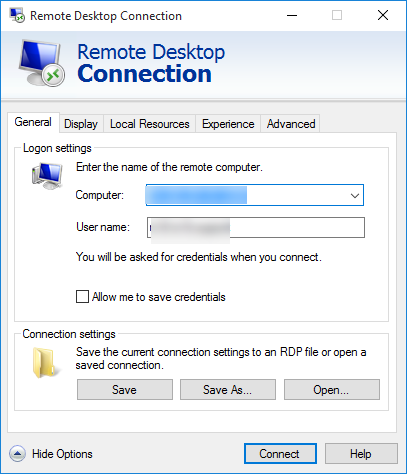
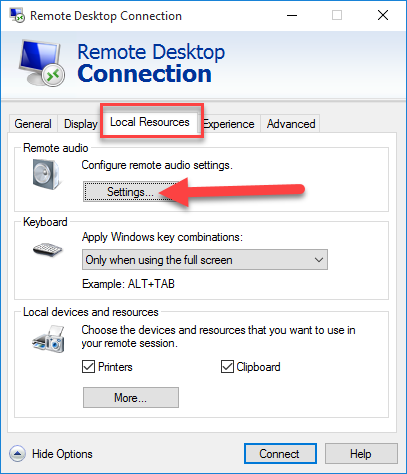
4. Select the 'Local Resources' tab then the 'Settings' button under 'Remote Audio'.
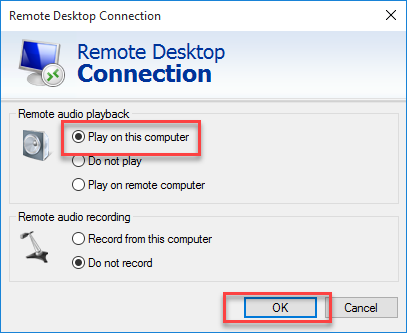
5. On the next screen ensure the 'Play on this Computer' is selected then press 'OK'.
5. Select the 'General' tab then click the 'Save' button.
Once done, you are right to connect to the server.
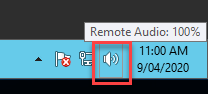
Once you are connected, you should now see the Audio icon next to the clock.
If you have any issues with these steps or have a question, please contact M1IT Systems on
Comments
0 comments
Please sign in to leave a comment.