
Creating an account
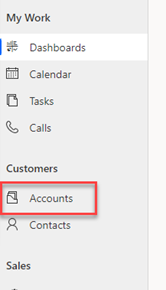
1. To add an Account/Company, click the ‘Accounts’ option from the left under the ‘Customers’ section.
2. This will list all current Accounts Records. To add a new Account, click the Plus symbol at the top labelled ‘New’

3. Enter all the relevant details for the company for each of the tabs.
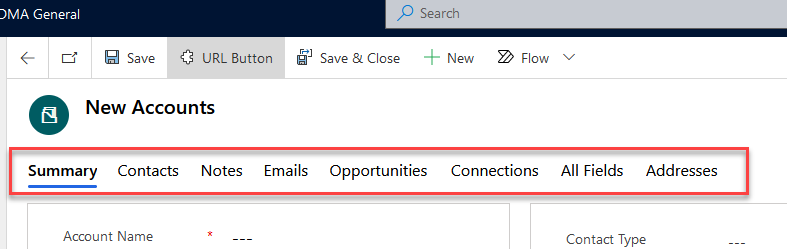
Currently, the Address details are entered via the ‘Summary’ Tab. If there are additional ‘Addresses’ you can add via the Address Tab.
4. Once complete, click the ‘Save & Close’ button along the top to return to the Accounts list.
Comments
0 comments
Please sign in to leave a comment.