
Adding a Contact or Individual
- To add a Contact or Individual, click the ‘Contacts’ option from the left under the ‘Customers’ section.
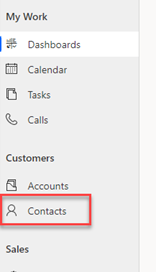
- This will list all current Contacts Records. To add a new Contact, click the Plus symbol at the top labelled ‘New’

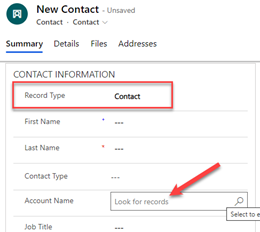
- If you are adding a Contact for an Account, first select ‘Contact’ for the ‘Record Type’ field. This will display the field called ‘Account Name’ where you can search for the Account/Company that the Record is related to.
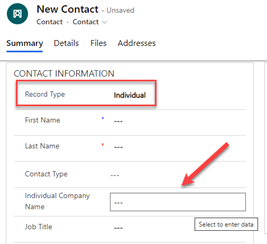
- If you are needing to add an ‘Individual’ then select the ‘Individual’ Option for the ‘Record Type’ field. This will display the field ‘Individual Company Name’ if there is a company that needs to be listed for this Individual.
- Currently, the Address details is entered via the ‘Summary’ Tab. If there are additional ‘Addresses’, you can add via the Address Tab.
- After you have finished. Click the ‘Save & Close’ to return to the Contacts list.
Comments
0 comments
Please sign in to leave a comment.