
Advance Searches and Saved Searches (Catalog Search)
To create and save advance searches click the ‘Advance Search’ icon on the top bar.
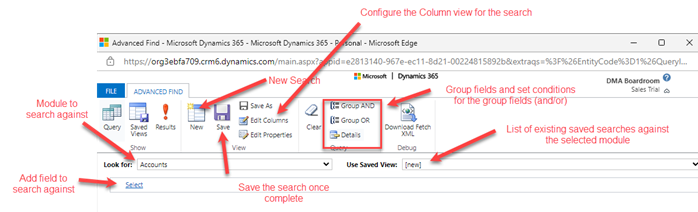
- To create a new search, select the module to search against in the ‘Look in’ drop-down menu.
- Click the ‘New’ button
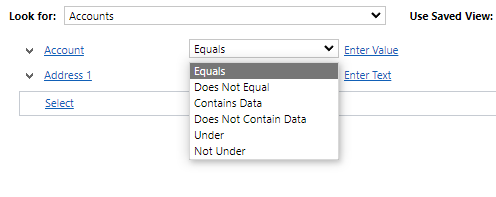
- Click the ‘Select’ link to add field to search against. You can add multiple fields. After selecting the field, you can then select the condition then the value.
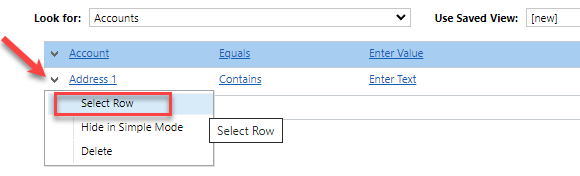
- Within the search, if you are needing to add a and/or condition against multiple search criteria. Click the down arrow at the start of the row and click ‘Select Row’. This will highlight each row.
After you have selected the Rows, select either of the ‘Group AND’ or ‘Group OR’ options.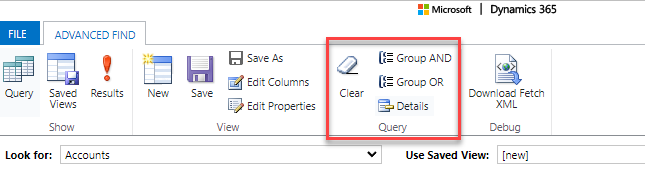
Once selected, you will see the changes against the selected fields.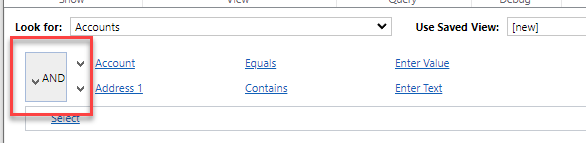
- To attach a Column configuration to this search, first click the ‘Edit Columns’ button.
- This will display the default Column setup. From this screen, you can add or remove columns to what is required.
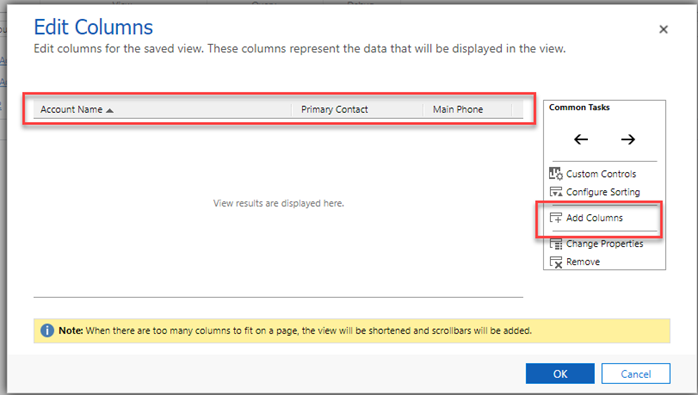
- Click ‘OK’ once finished setting up the Column view.
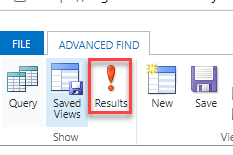
- After you have finished setting up the Advance Search, you can test the search from this window to see if the search results are correct. Click ‘Results’ to see the search results.
- If you are satisfied with this result, and you need to save this search for later retrieval, then click the ‘Save’ button and name the search.
- To retrieve this search later, you can either load the search from the ‘Advance Search’ dialogue box or, depending on what was selected in the ‘Look for’ drop-down selection in the Advance Search, it will display in the drop-down selection for that selected module.
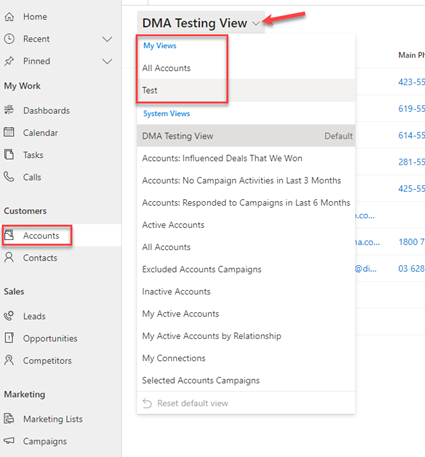
E.g. If you selected ‘Accounts’ for the ‘Look for’ option, then go to the ‘Accounts’ selection under the ‘Customers’ grouping. Click the down arrow to change the view and select the saved Advance Search View that was created. You will see that the results will display the results of the search parameters and the Column view created.
Comments
0 comments
Please sign in to leave a comment.