
Currently Microsoft are making changes to go towards a password free user experience.
With this change we are enabling all 2FA on all personal email mailboxes.
0365 Web Portal: https://portal.office.com
1. When you log into the 0365 web portal, you will be presented with a pop-up that informs you that 'More Information Required'

Note: you are given 14 days to complete this process.
2. Click the 'Next' button.
3. On the next screen select the option to 'Send me a code by text message'. Select your Region and enter your phone number of the mobile device that you wish to use for Authentication. Click 'Next'.
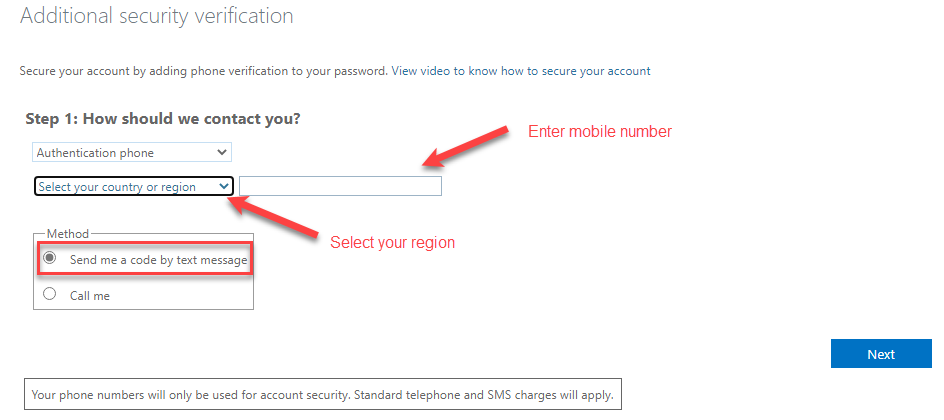
4. On the next screen you will be prompted to enter a 6 digit code that will have been sent via text the the mobile number you entered in the previous step. Enter the code and click 'Verify'
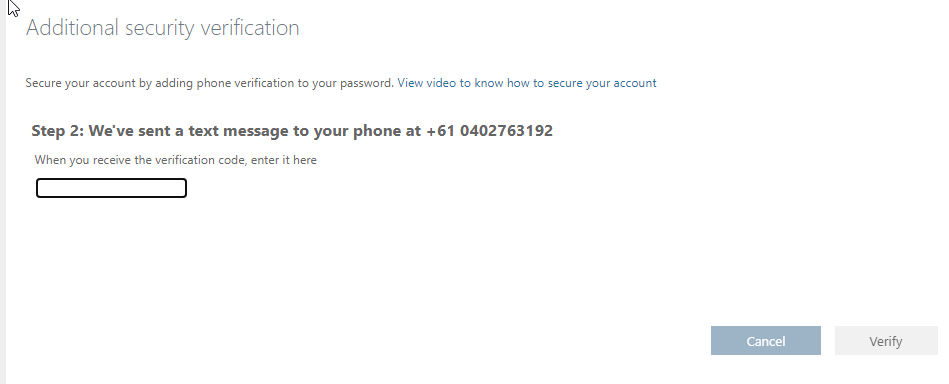
5. Once verified you will then be displayed an Additional Security Verification code. Please copy this code and send to 'support@m1it.com.au'.
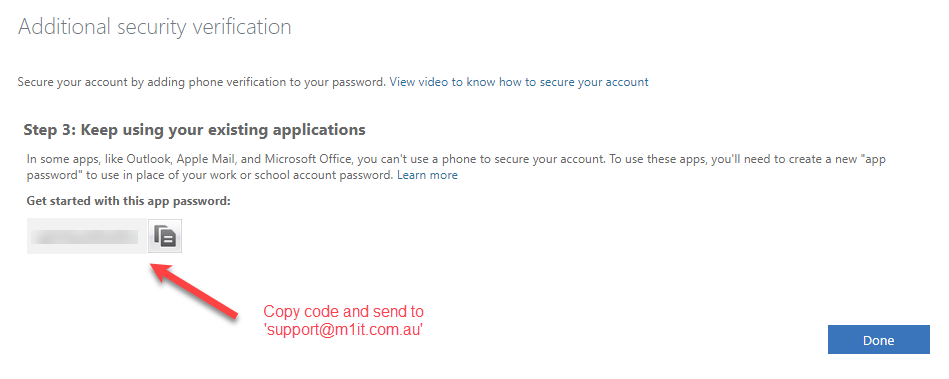
6. Click 'Done' to complete setting up your 2FA.
If you have any trouble or questions regarding this process. Please contact M1IT Systems at 'support@m1it.com.au'
Comments
0 comments
Please sign in to leave a comment.