
To log into the Online Web Portal for Microsoft Office 365, go to:
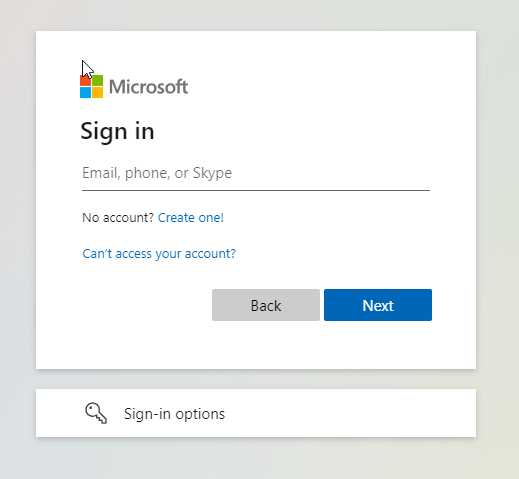
Enter your email address then click 'Next'.
*If asked for the type of account, select the 'Work or School Account' option.
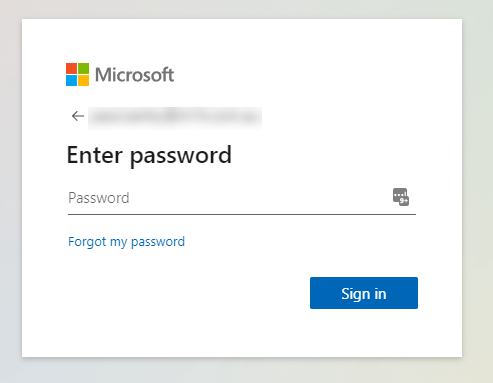
Enter your Password then click 'Sign in'.
*If this is the first time sign in into the Web Portal or you have not setup your Two Factor Authentication then you will be prompted to complete this on the next step.
Please follow these steps to complete.
https://support.m1it.com.au/hc/en-us/sections/115000170752-Microsoft-Office-365
After you have successfully signed in, you will be directed to the Office 365 Apps screen.
You will have icons on the left side of the screen representing each of the Microsoft Office Apps.
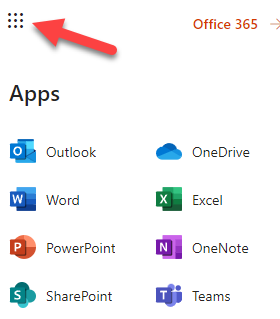
You can access a full list by selecting the 9 dot icon in the top left corner.
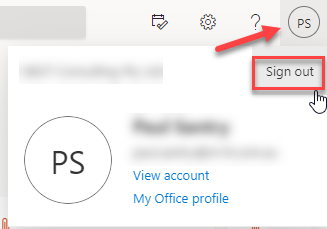
To log out of your Microsoft 365 Online Portal, select your avatar icon in the top right corner and select 'Sign Out' from the link.
If you have any questions or issues with the process please contact M1IT Systems at support@m1it.com.au
Comments
0 comments
Please sign in to leave a comment.