
Currently Microsoft are making changes to go towards a password free user experience.
With this change we are enabling all 2FA on all personal email mailboxes.
1. When you start Outlook, you will be presented with a pop-up that informs you that 'More Information Required'

Note: you are given 14 days to complete this process.
2. Click the 'Next' button
3. On the next screen you are directed to install the 'Microsoft Authenticator App' onto your personal mobile device. You will find this app either in the Google Play Store or the Apple App Store depending on the device you have. Download and install the App before proceeding.
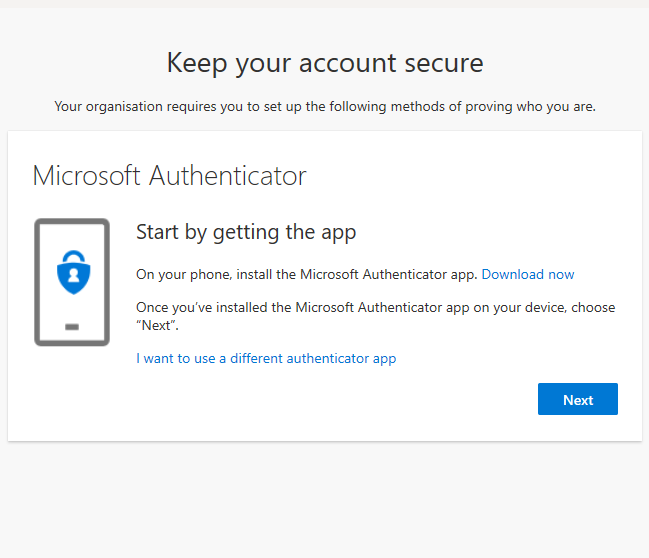
4. Once you have installed the 'Microsoft Authenticator App' click 'Next'.
5. On the next screen you are directed to Allow all notification requests then click the 'Add Account' button within the app. Select the 'Work or School' type of account you are adding.
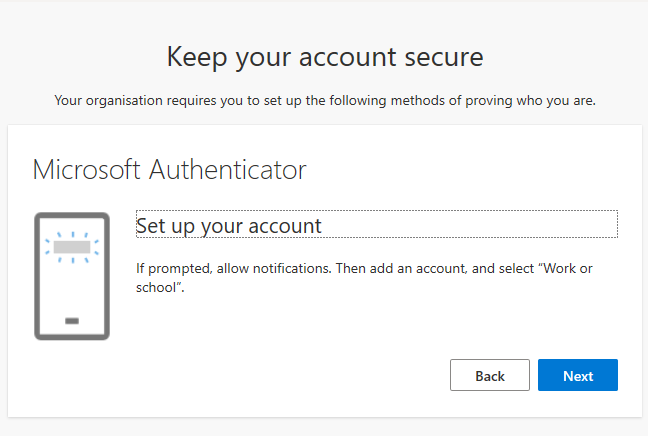
6. After clicking next on the computer you will be displayed a QR Code to scan and add your account. On the mobile device click the 'Scan QR Code' option and then direct the camera at the QR Code on the screen. You will be notified once added.
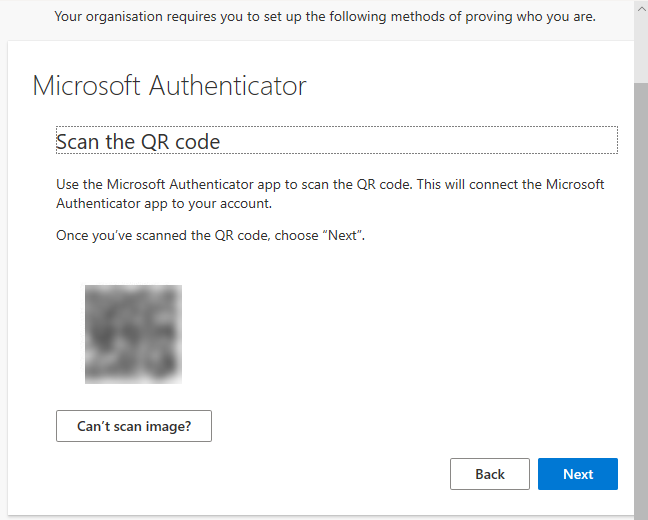
7. After you have scanned the QR Code and added your account to the mobile app, click 'Next'.
This will send a request to the Microsoft Authenticator App to approve the login request. Click 'Approve' on your mobile device.
8. After you have approved your login request click next until you have finished the setup.
Please note: this is only needed to be completed once for each email mailbox.
If you have any questions or issues with this process, please contact M1IT Systems at support@m1it.com.au
Comments
0 comments
Please sign in to leave a comment.