
The following article provides detail on installing and configuring the Microsoft Authenticator app on your mobile device.
Depending on the type of device you are using, please download the appropriate app on your mobile device from either the Apple App Store (iOS) or the Google Play Store (Android) using the links below.
iOS: https://apps.apple.com/au/app/microsoft-authenticator/id983156458
Android: https://play.google.com/store/apps/details?id=com.azure.authenticator&hl=en_AU&gl=US
Once you have downloaded the appropriate app for your device, open your web browser on your PC or laptop (Use either Chrome, Firefox or Edge).
Then go to the following address: https://portal.office.com and enter your email and password.
You will then be directed to enable your 2 Factor Authentication as per the screen shot below.
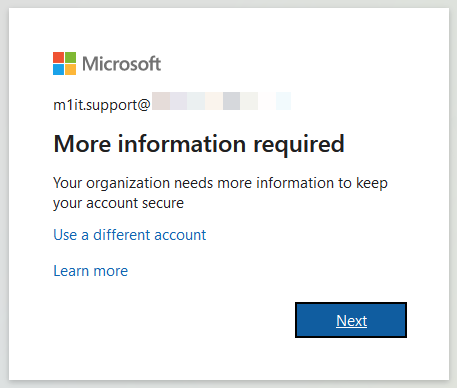
When you see this prompt, click the 'Next' button, then you will be prompted to select a contact method.
Next, select ' Mobile app' from the drop down menu, then select the bullet point for 'Receive notification for verification'
Once you've selected your contact method, you will press the 'Set up' button to move to the next step.
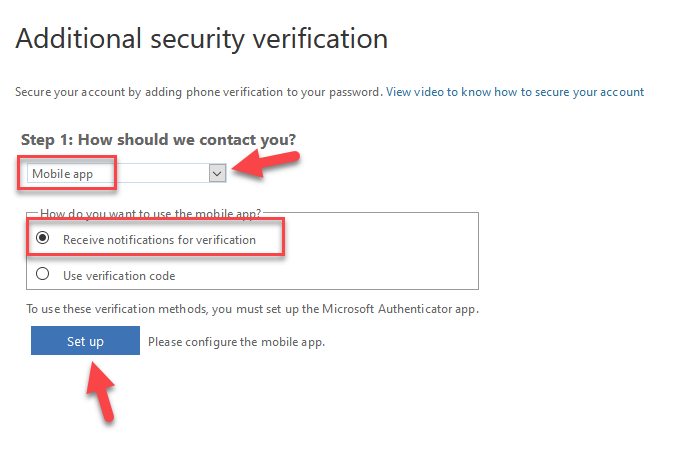
Now that we have selected the options for the contact method, you will see a QR code on screen.
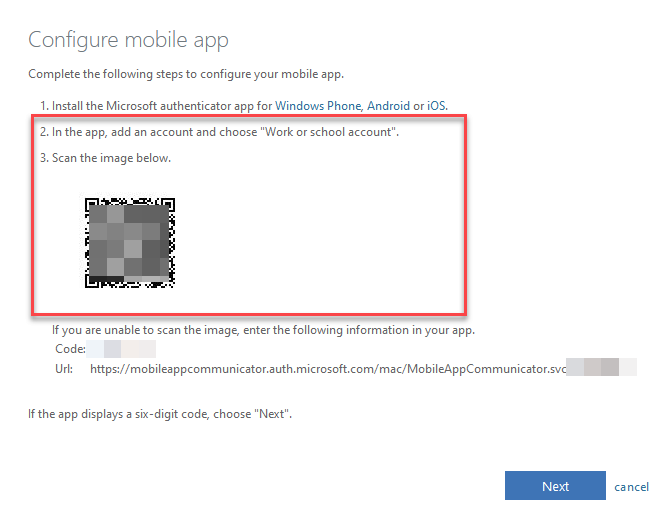
Now switch back to your mobile device for the following steps.
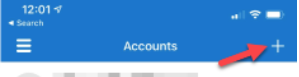
First, click the + icon at the top right hand side of your mobile screen.
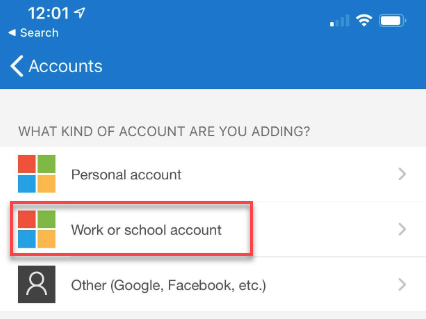
Next, select 'Work or School Account'
Finally, choose to scan QR code, and then hold your phone so that the camera can take a picture of the QR code that is on your PC or laptop screen.
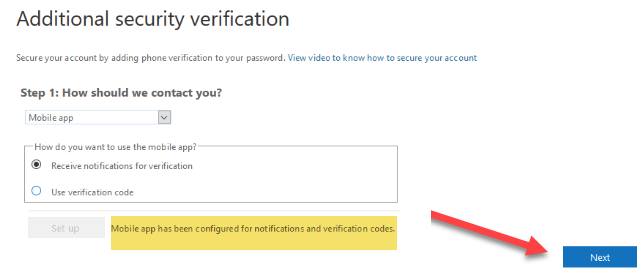
Once you have scanned the QR Code you will now see the new account added to the mobile app which means your account is not configured for 2 factor authentication. If the process was successful then you will see 'Mobile app has been configured for notifications'.

To finalise the process, click 'Next' and you will then be asked to approve your first 2FA request.
The final step is to add a backup authentication method, in case you lose access to the Microsoft Authenticator app in future for any reason.
The number needs to be added by dropping the '0' and adding the '61' country code.
e.g. 61402 763 192
To begin the process, click 'Next', select your country code, then add your mobile number in the field provided before submitting.
At the end of the process, the system will present you with an 'App Password'. We ask that you email this password through to support@m1it.com.au with the subject '<company> - <you name> O365 App Password'
This password is unique to your account. The purpose of this password is for mobile apps that are not compatible with the Microsoft 2FA system. So if the password is not captured at this point the process will need to be restart to obtain this again.
If you have any issues or question for this process, please contact M1IT Systems at 'support@m1it.com.au'
Comments
0 comments
Please sign in to leave a comment.