
Most Windows 10 PC's come preinstalled with Microsoft Teams. If you find that your PC does not have Microsoft Teams installed please follow the below process. If Microsoft Teams is already installed please move to step 7.
Installing Microsoft Teams
1. Please go to:
https://products.office.com/en-au/microsoft-teams/group-chat-software
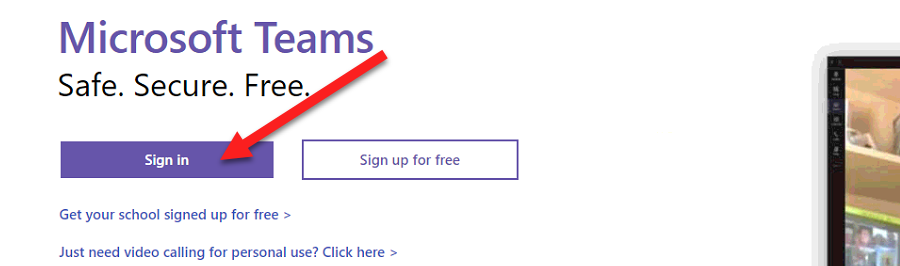
2. Sign in with your email and password. If asked for the type of account, select 'Work or School Account'
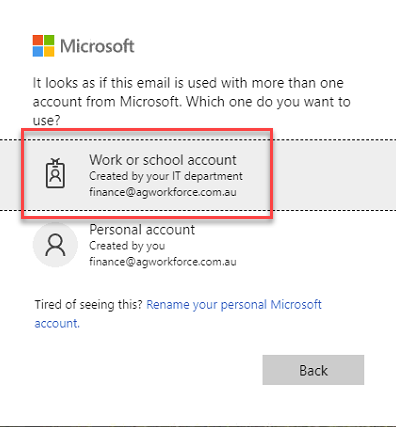
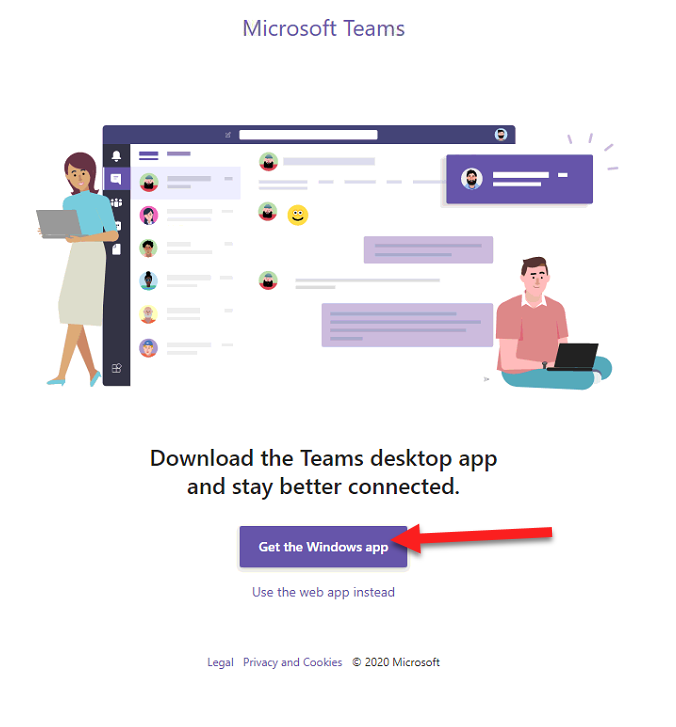
3. Once signed in, select 'Get the Windows app'
4. You will see the file starting to download at the bottom of your screen (if using Chrome). If you do not see this then you will find your Downloaded file within your 'Downloads' directory.
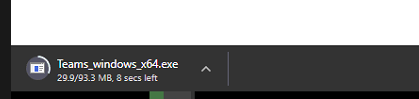
5. Once the download has finished, run the file. This will start the install process.
6. Once finished, Microsoft Teams will automatically start and sign you in.
Using Microsoft Teams
7. When you have loaded 'Microsoft Teams'. If it is showing you as not logged in. Then use your email and password to login. If asked what type of account, select 'Work or School Account'.
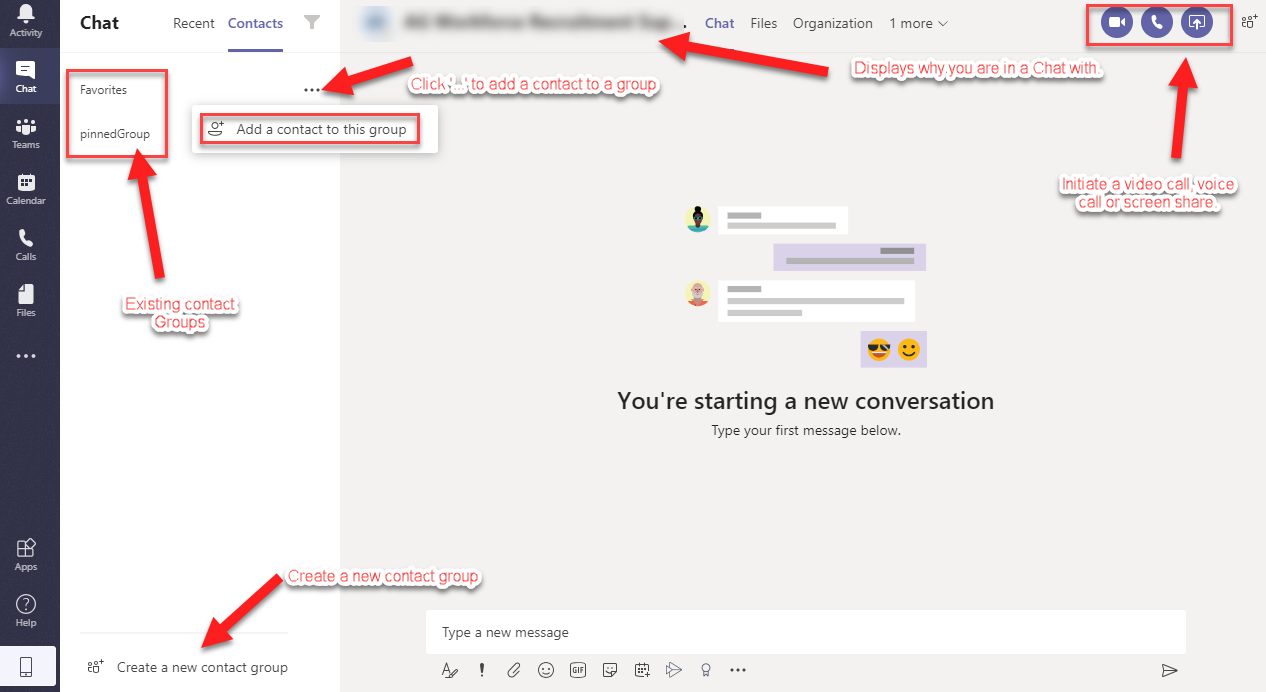
8. Chat Layout
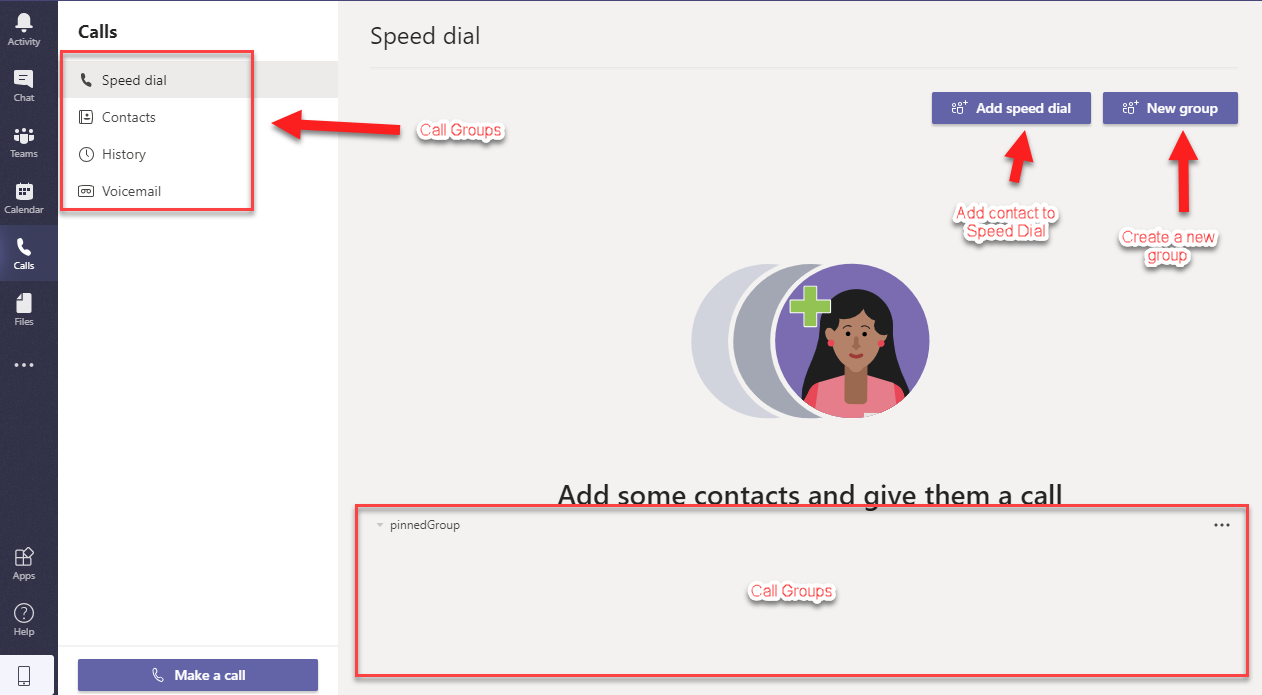
9. Call Layout
If you have any issues or questions with the process, please contact us at support@m1it.com.au
Comments
0 comments
Article is closed for comments.