
How to Whitelist a Domain to Bypass Spam Filtering in Microsoft Office 365
Add New Mailflow Rule in Office 365
This article will walk you through the process of whitelisting a domain name to completely bypass Office 365′s SPAM filter for all senders from the domain name in question.
Step by Step Instructions
- Login to https://portal.microsoftonline.com with your administrator account credentials.
- Go to Admin > Exchange > Mailflow
- Mailflow enables you to set rules on the server before the email is delivered to Outlook.
- This is similar to setting rules using Outlook’s built in rules.
- Click the + and select Bypass Spam Filtering
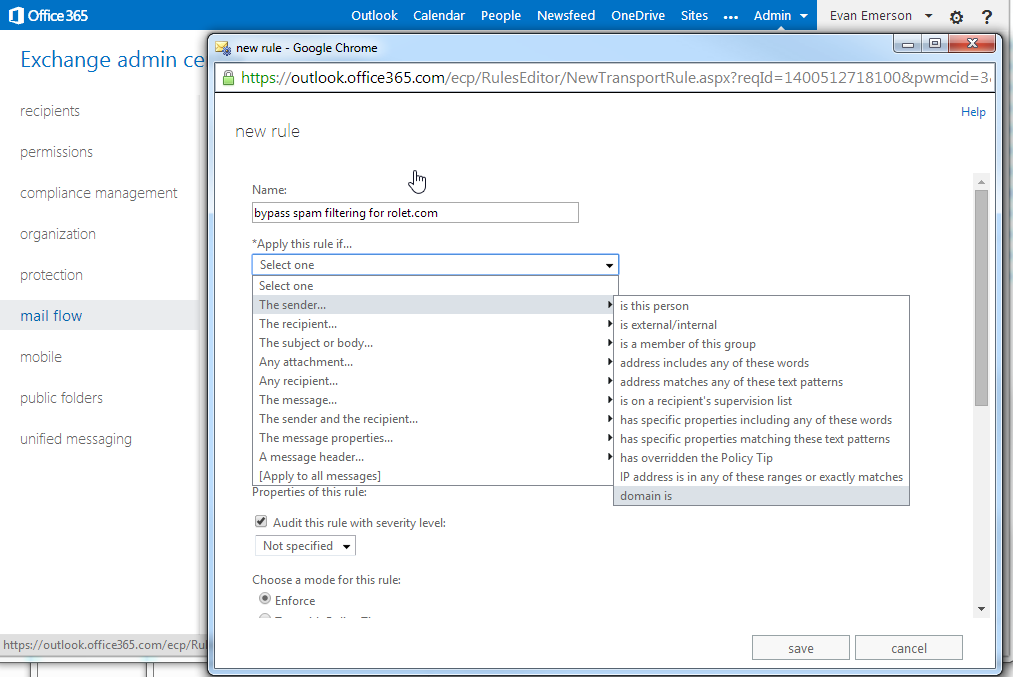
- Apply this rule if… > The sender… > domain is
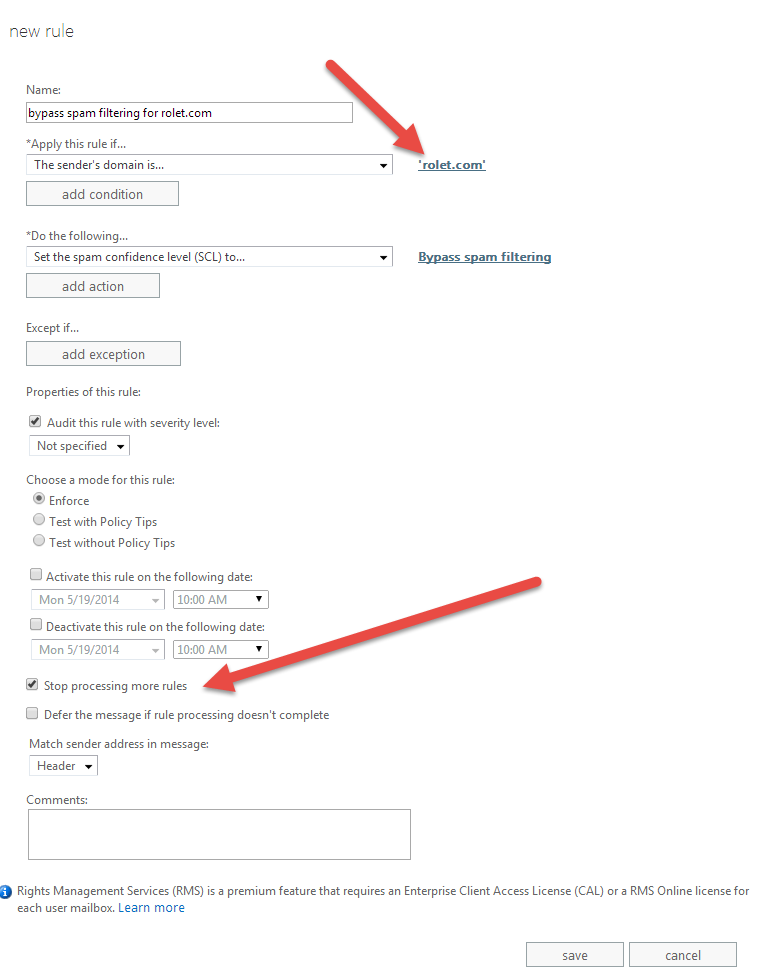
- Enter the domain name (example: rolet.com)
- Under specify domain, be sure to click the + to add the domain to the list.
- You can come back to this rule and add domain names for each domain you want to whitelist. There is no need to create additional global rules in Mailflow for each domain.
- Click ok
- Check Stop processing more rules
- Click save
You will now see your new rule in the list. To turn on spam filtering for all domains, uncheck the box under “ON” in the rules list. To turn the rule back on, simply check the box.
Comments
0 comments
Please sign in to leave a comment.